Bus Stop Resource Hub
To support bus stop planning representatives seeking to transform bus stops in their neighborhoods into community assets,
Metro has put together a variety of helpful resources.
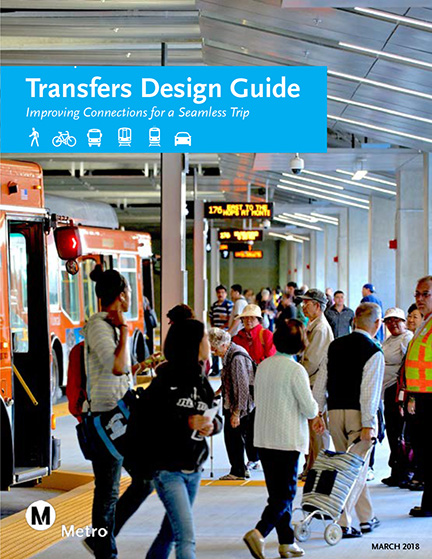
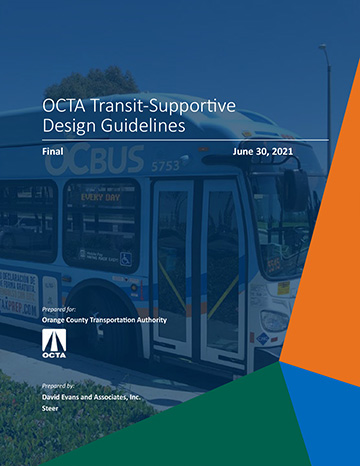
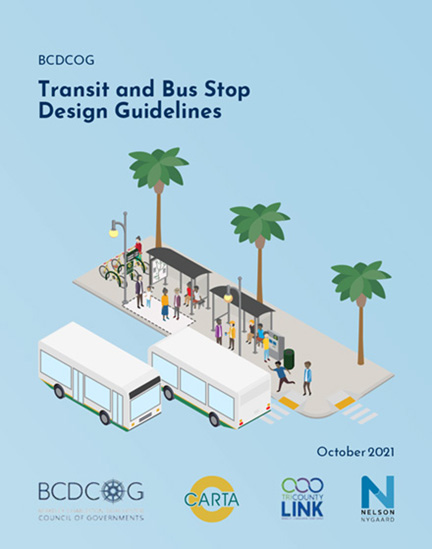
Many guides exist globally, nationally and locally to help cities and communities implement efforts related to bus stop improvement initiatives and policies. There are several resources and guides that may be helpful to you as you plan your bus stop improvements.
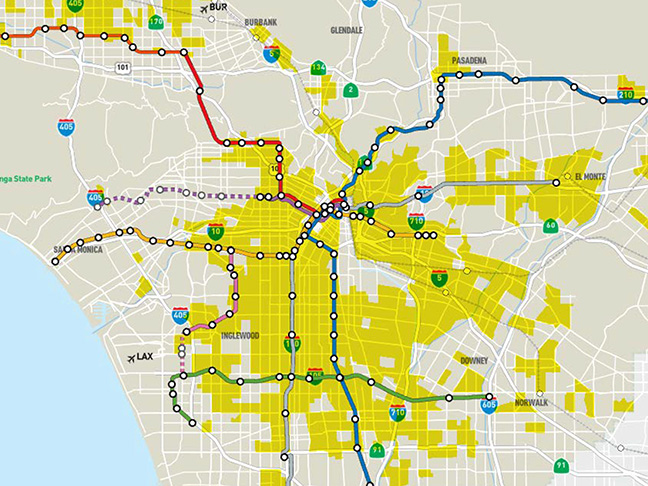
Metro’s 2022 Customer Experience Plan highlights how cleaner bus stops with enhanced features and amenities is an immediate goal for improving the rider experience. To that end, Metro has pursued an analysis of all 12,000 bus stops serviced by Metro to help cities identify priority bus stops for improvements. Learn more about Metro’s bus stop prioritization analysis and explore maps of priority bus stops here.
To provide the best experiences, we use technologies like cookies to store and/or access device information. Consenting to these technologies will allow us to process data such as browsing behavior. Not consenting or withdrawing consent may adversely affect certain features and functions. We do not sell or share personal information to third parties for monetary consideration.
This tool is best used on desktops and laptops.
Step 2: Add your amenities to your bus stop
Step 3: Save your design
This tool is best used on desktops and laptops, and when the background image you choose below is viewed straight on
Step 1: Find your background image
NOTES: It’s possible Google hasn’t created a Street View for some bus stops. If this is the case for the bus stop you want to add amenities to, you may want to consider taking a smartphone photo of that bus stop and uploading it here via the “Upload Background” button (crop your image square). Per Google Street Map View compliance rules, it is not possible to edit the lighting or shading of a Google Street View background, so choose thoughtfully or upload your own image.
Once you have your chosen bus stop background on the right, select the “Design Bus Stop” button to go to the next screen to then add amenities.