
Bus Stop Resource Hub
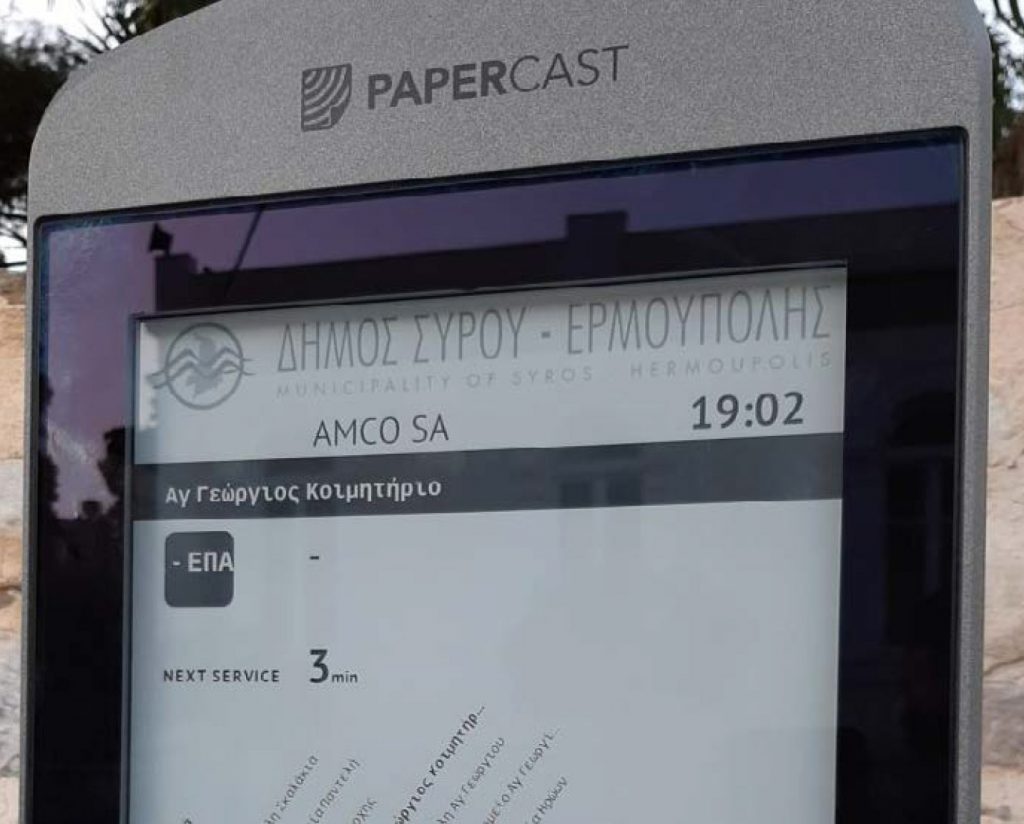
As part of Athens-based Amco Inspired Technologies Smart City projects, Greek Islands Santorini and Syros have implemented solar-powered e-paper bus stop displays, which present real-time passenger information, including public transportation routes and estimated arrival times. These bus stops contribute to Greece’s national strategy to innovate public transportation systems and reduce private vehicle emissions to become more sustainable. The displays are installed off-grid through a wireless connection with low power consumption, allowing them to be continuously powered by solar and have high screen visibility, making them ideal for outdoor use.
To provide the best experiences, we use technologies like cookies to store and/or access device information. Consenting to these technologies will allow us to process data such as browsing behavior. Not consenting or withdrawing consent may adversely affect certain features and functions. We do not sell or share personal information to third parties for monetary consideration.
This tool is best used on desktops and laptops.
Step 2: Add your amenities to your bus stop
Step 3: Save your design
This tool is best used on desktops and laptops, and when the background image you choose below is viewed straight on
Step 1: Find your background image
NOTES: It’s possible Google hasn’t created a Street View for some bus stops. If this is the case for the bus stop you want to add amenities to, you may want to consider taking a smartphone photo of that bus stop and uploading it here via the “Upload Background” button (crop your image square). Per Google Street Map View compliance rules, it is not possible to edit the lighting or shading of a Google Street View background, so choose thoughtfully or upload your own image.
Once you have your chosen bus stop background on the right, select the “Design Bus Stop” button to go to the next screen to then add amenities.