
Bus Stop Resource Hub
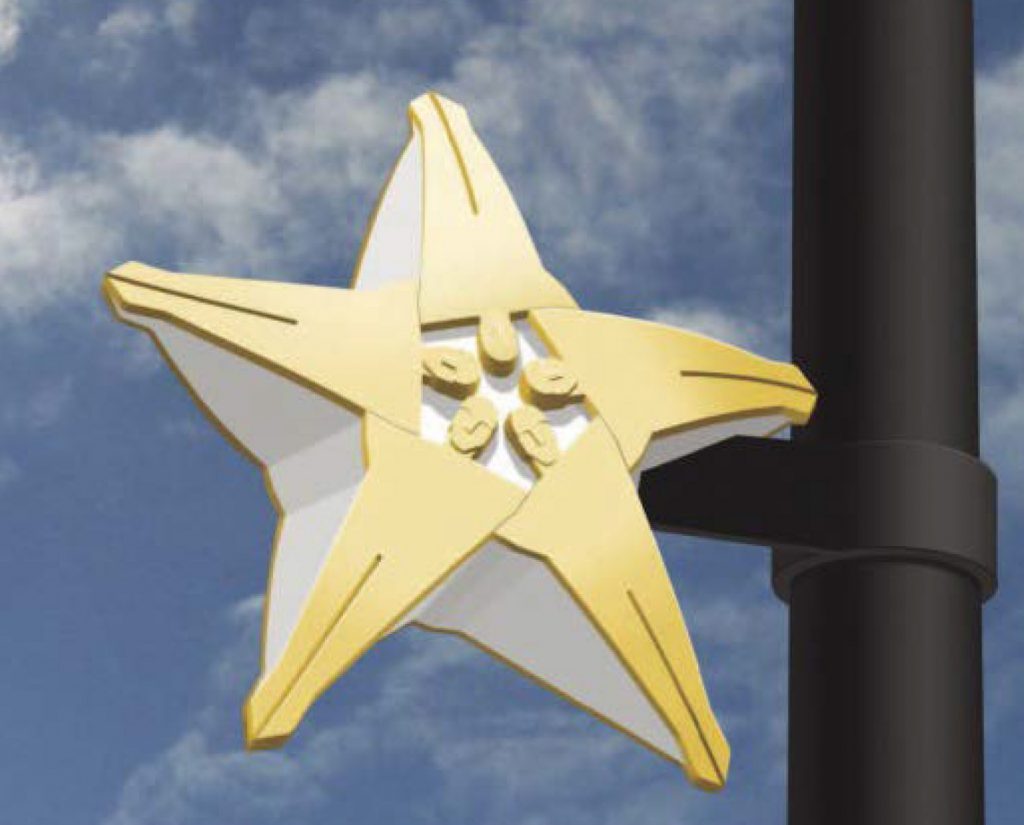
In 2016, Los Angeles’ Board of Public Works (BPW) and Bureau of Street Lighting (BSL) installed decorative street lights at 17 Metro Bus stops in Historic Filipinotown. Upgraded street lights create more visibility for Metro Bus riders, improve public safety and establish a sense of place unique to the community. Decorative elements designed by artist Roel Punzalan were integrated into the new street lights, focusing on the neighborhood’s rich cultural heritage, highlighting themes of humanity, mobility and peace. The project was a partnership between the BSL, BPW, Metro, LADOT and Councilmember Mitch O’Farrell, and was completed for $625,000.
To provide the best experiences, we use technologies like cookies to store and/or access device information. Consenting to these technologies will allow us to process data such as browsing behavior. Not consenting or withdrawing consent may adversely affect certain features and functions. We do not sell or share personal information to third parties for monetary consideration.
This tool is best used on desktops and laptops.
Step 2: Add your amenities to your bus stop
Step 3: Save your design
This tool is best used on desktops and laptops, and when the background image you choose below is viewed straight on
Step 1: Find your background image
NOTES: It’s possible Google hasn’t created a Street View for some bus stops. If this is the case for the bus stop you want to add amenities to, you may want to consider taking a smartphone photo of that bus stop and uploading it here via the “Upload Background” button (crop your image square). Per Google Street Map View compliance rules, it is not possible to edit the lighting or shading of a Google Street View background, so choose thoughtfully or upload your own image.
Once you have your chosen bus stop background on the right, select the “Design Bus Stop” button to go to the next screen to then add amenities.